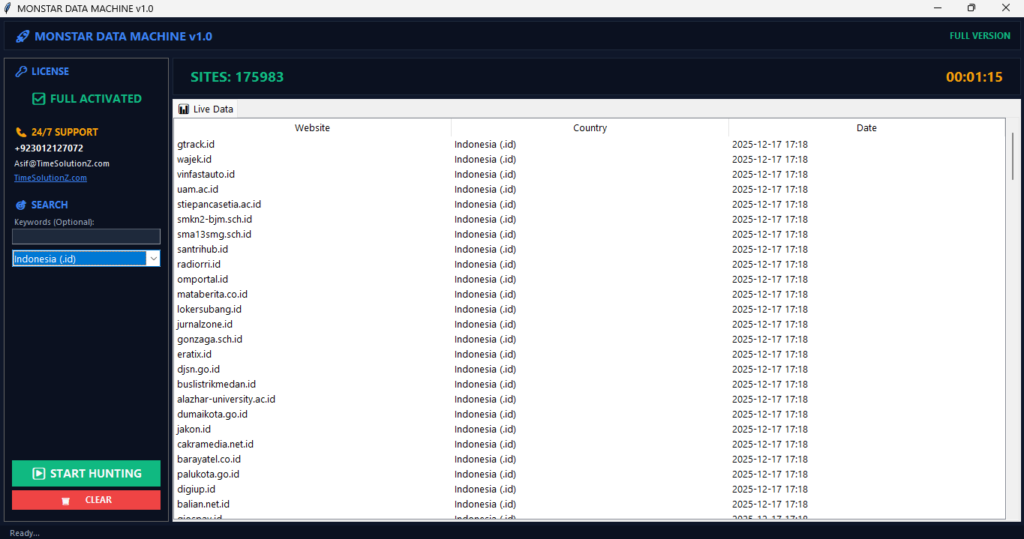
To boost your sales, you must Format scraped data for CRM import accurately. Raw information often arrives messy, causing constant system rejects and broken records.
By cleaning your lead generation lists and fixing formatting issues early, you stop these errors before they start. You must align every column, remove duplicate entries, and ensure data validation meets your platform’s strict rules.
This simple, hands-on process turns random text into a clean database that your team trusts. When you refine your contact management workflow this way, you save hours of manual fixing.
Follow this guide to prepare your files perfectly, keep your records healthy, and ensure your CRM stays ready for action.
Why Raw Scraped Data Fails CRM Validation Rules
Raw scraped data often fails because it does not fit the strict structure your CRM demands. CRMs have rigid rules to keep their databases healthy and fast.
If your file has weird formats, missing mandatory spots, or hidden junk characters, the system rejects it. Proper formatting keeps your data clean, searchable, and always ready.
Phase 1: The Essential Data Mapping Checklist (Before You Clean)
Data mapping connects your spreadsheet columns to specific spots inside your CRM. Before you start cleaning, you must find where every piece of information belongs.
Good mapping stops data loss. It ensures that every lead detail sits in the right category for your sales reports and for your automated email outreach workflows.
Aligning Scraped Fields with Standard CRM Objects
You align your scraped data with CRM objects like Leads, Contacts, and Accounts to keep things organized. For example, you put person-based data in the Contact object, while you save company-specific info in the Account object.
Misaligned data makes it impossible to segment your audience or track the customer journey effectively within your database.
Identifying Required Fields for Salesforce, HubSpot, and Zoho
Each CRM has mandatory fields you must fill to save a new record. Common required fields include Email Address, Last Name, or Company Name.
If your scraped list lacks these, you must create them or skip those records. Check your specific CRM documentation to confirm required fields before you begin your big import process.
Creating Custom Fields vs. Using Default CRM Properties
You create custom fields when your scraped data has unique details that do not fit standard fields. You use default properties for standard data like phone numbers or job titles.
You use custom fields for specific attributes like Lead Score, Scraped Source, or Industry Niche. This keeps your CRM organized and prevents annoying data clutter.
Phase 2: Step-by-Step Data Transformation and Cleaning
You change raw text into a format your CRM understands during the cleaning phase. Without this, your database fills with messy, unusable junk.
A structured cleaning process ensures that your records stay professional, consistent, and compatible with the data validation rules of your CRM software to ensure successful and smooth, fast data imports.
Step 1: Parsing Full Names into First and Last Name Fields
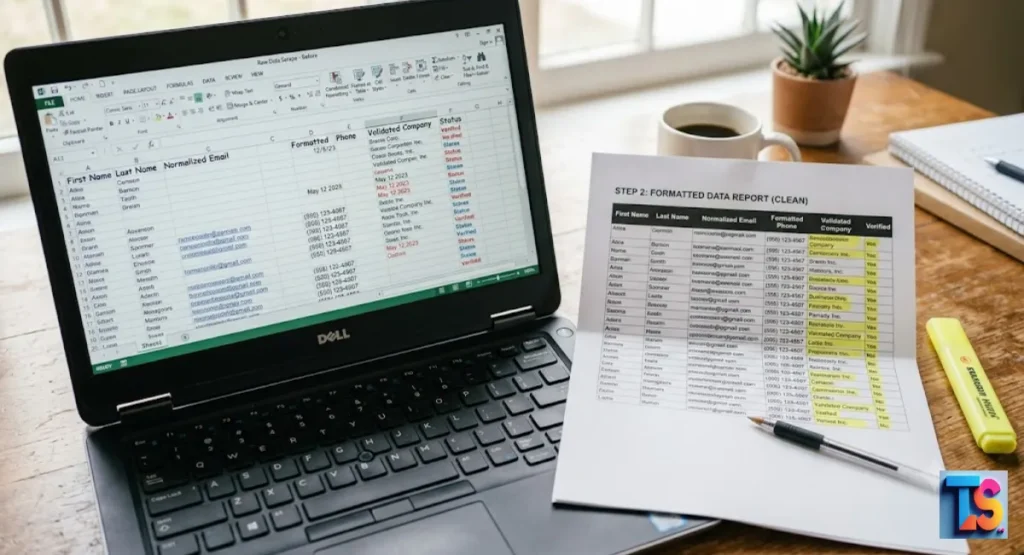
Many CRMs need separate fields for First Name and Last Name to support personalized email templates. If your scraped data shows full names in one column, you use the Text-to-Columns feature in Excel or Google Sheets.
You split the text at the space character to ensure you address leads by their first name properly.
Step 2: Normalizing Phone Numbers to E.164 Global Standard
Phone numbers often appear in various formats like (555) 123-4567 or 555-123-4567. CRMs prefer the E.164 standard, which uses the plus sign and country code, such as +15551234567.
You use a formula to remove dashes, parentheses, and spaces. This ensures your CRM dialer or click-to-call integrations function correctly without any manual help from you.
Step 3: Standardizing Date Formats (YYYY-MM-DD) for Timezones
Date formats vary by region, which causes confusion for CRM time-based triggers. You standardize all dates to the YYYY-MM-DD format. This format is internationally recognized and prevents the CRM from misinterpreting the month and day.
Consistent date formatting helps you track lead age, conversion timelines, and follow-up schedules throughout the entire sales year.
Step 4: Cleaning Company Names (Removing Inc., LLC, and URL Strings)
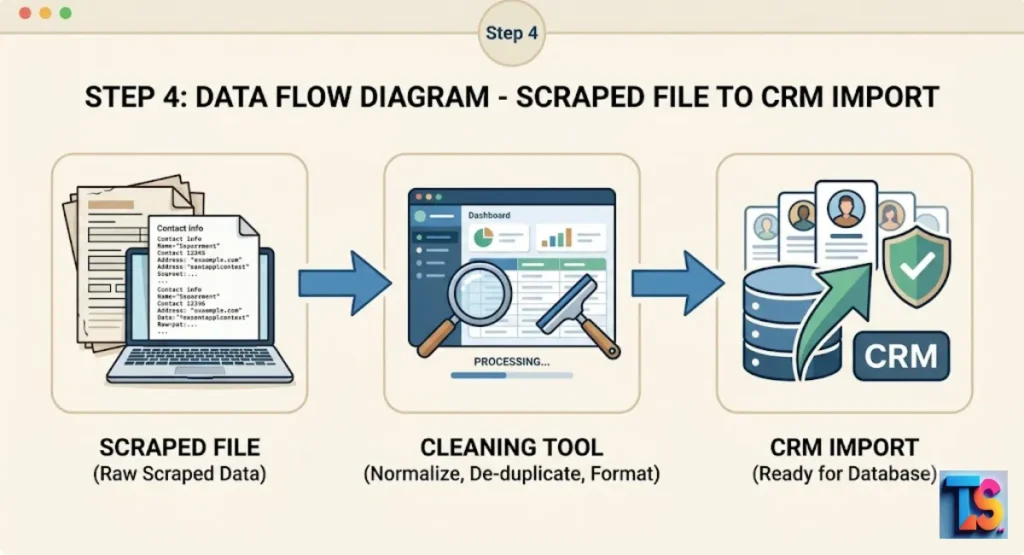
Scraped company names often include legal suffixes like Inc., LLC, or Corp., which clutter your view. You use the Find and Replace tool to remove these suffixes for a cleaner look.
Additionally, you strip any URL strings or hidden characters from the company name column to maintain professional-looking reports and lead lists for your team.
Step 5: Validating Email Syntaxes and Removing Dead Domains
Invalid emails lead to high bounce rates, which hurt your sender reputation. You use an email validation tool to check if the addresses follow proper formatting and exist.
You remove any leads with syntax errors, typos, or dead domains. Cleaning your list before import protects your email deliverability and saves your sales team time.
Phase 3: Advanced De-Duplication and Data Enrichment
De-duplication removes duplicate records in your dataset to ensure accuracy. If you import the same lead twice, you create confusion and risk sending duplicate messages.
Advanced enrichment ensures that every record in your CRM stays unique, high-quality, and properly tagged for accurate sales attribution throughout your database and all related lead management systems.
Merging Duplicate Leads Using Primary Keys (Emails and Domains)
Your CRM uses primary keys, usually the email address or company domain, to identify unique records. Before importing, you sort your spreadsheet by these columns to spot duplicates.
If you find multiple entries for the same email, you merge them into one row containing the most complete and up-to-date information for that specific contact.
Handling Missing Data: To Leave Blank or Use Placeholder Values?
You decide how to handle missing information before importing. Leaving a cell blank usually works better than entering random placeholders like N/A, as placeholders can break automated filters.
You only use a placeholder if you have a specific system-wide process for identifying incomplete records. Otherwise, you keep the field empty for clean data reporting.
Adding “Lead Source” and “Scrape Date” Meta-Tags for Accurate Attribution
You add columns for Lead Source and Scrape Date to every lead. This helps you track which scraping campaigns perform best and when you acquired the data.
By adding these meta-tags, you easily filter your CRM to view leads from specific sources or purge outdated data later when it reaches its shelf life.
Phase 4: Final File Export Configurations
Correct file export settings ensure your CRM reads your data exactly as you intend. If you use the wrong encoding or delimiters, your CRM might fail to recognize your columns, which leads to a massive import error.
Using the right configuration saves time and ensures a smooth transition from your spreadsheet to your database.
Why UTF-8 Encoding is Mandatory for Scraped Data
UTF-8 is the universal standard for text encoding. It ensures that special characters, like those in international names or symbols, appear correctly.
If you use a different encoding, your data may appear as garbled text or broken symbols in your CRM. You always choose CSV UTF-8 format when you save your final file.
Handling Commas and Text Qualifiers in CSV vs. Excel Files
CSV files use commas to separate data, which can break your file if your data contains commas. You use text qualifiers, usually double quotes, to wrap cells that contain commas.
This tells the CRM to treat the text inside the quotes as a single unit, which prevents columns from misaligning during the import process.
Step-by-Step CRM Import Walkthrough
A successful import requires careful testing to ensure the data maps correctly. By starting with a small batch, you identify potential formatting issues without risking your entire database.
This systematic approach confirms that your clean data interacts perfectly with your CRM fields before you perform a full-scale migration of your leads and contact records.
Uploading a Small Test Batch (The 50-Row Rule)
You never import your entire list at once. You start by uploading a test file containing only 50 rows. This allows you to verify that the data maps correctly to your CRM fields.
If the test succeeds, you proceed with confidence. If it fails, you fix the issue in your source file without wasting time.
Mapping Spreadsheet Columns to CRM Properties
During the import wizard, the CRM asks you to match your spreadsheet columns to its fields. You take your time to align every column carefully.
If a column does not have a matching CRM field, you decide whether to map it to a custom field or ignore it. Accurate mapping is the final key.
Reviewing the Import Error Log and Fixing Partial Failures
You review the error log the CRM generates after the import. You identify which records failed and why. Common reasons include formatting errors or missing required fields.
You fix the errors directly in your source file, save it as a new version, and try importing the failed records again for success.
Pro-Tips for Automating the Scrape-to-CRM Pipeline
You remove the manual work of cleaning and importing data through automation. By using tools to bridge the gap between scraping and your CRM, you ensure a constant flow of fresh leads without the risk of human error.
Modern 2026-standard security protocols, including encrypted pipeline security, ensure you protect all sensitive information during transfer.
Using Zapier or Make.com for Real-Time Data Formatting
Platforms like Zapier or Make.com allow you to automate the formatting process. You create a workflow that takes new scraped rows, applies your cleaning rules, and pushes them directly into your CRM.
These tools handle the parsing and normalization automatically, ensuring your CRM receives clean, validated data as soon as you scrape the information.
Best API Practices for Direct CRM Data Injection
You use an API as the most efficient way to import data for advanced needs. APIs allow your scraping software to talk directly to your CRM. This method is faster and more reliable than manual CSV uploads.
In 2026, industry standard connectors use OAuth 2.0 to ensure your data injection remains secure, private, and authenticated.
Troubleshooting: 5 Common CRM Import Errors and How to Fix Them
Even with careful planning, you may encounter errors. Understanding these common issues allows you to resolve them quickly and keep your data workflow moving.
By knowing the symptoms and fixes for these errors, you maintain control over your database health and prevent long-term issues with your lead management system and your sales data.
Error: “Required Field Missing”
This error occurs when you fail to provide information for a field the CRM demands. You check the error log to see which column is missing data.
You go back to your source file and fill in the missing information or delete the incomplete rows before you try the import again for success.
Error: “Invalid Picklist Value”
CRMs often use picklists, which are restricted lists of values like Industry or Lead Status. If you try to import a value that is not in the CRM list, the system rejects it.
You update your source data to match the exact spelling and capitalization of the values allowed in your CRM picklist.
Error: “Unparsed Characters or Broken Formatting”
This usually happens due to incorrect file encoding or stray characters. You ensure your file is saved as CSV UTF-8. If the error persists, you open the file in a plain text editor to check for invisible characters or unexpected line breaks.
Cleaning the file in a text editor often resolves hidden formatting conflicts.
Summary
Formatting scraped data is a vital skill for anyone managing lead generation campaigns. By mapping your fields correctly, normalizing your data, and handling duplicates, you ensure that your CRM remains a clean and powerful tool.
You follow these steps to automate your workflow, reduce import errors, and improve your overall lead quality throughout 2026. The bottom line is: keep it clean.
Note: For Ethical & Technical Scraping, ensure your Proxy rotation guide for beginners is active. If you face issues, use a tool to Fix Chrome scraping timeouts or Scrape large lists without IP blocks, then Format scraped data for CRM import using this guide.