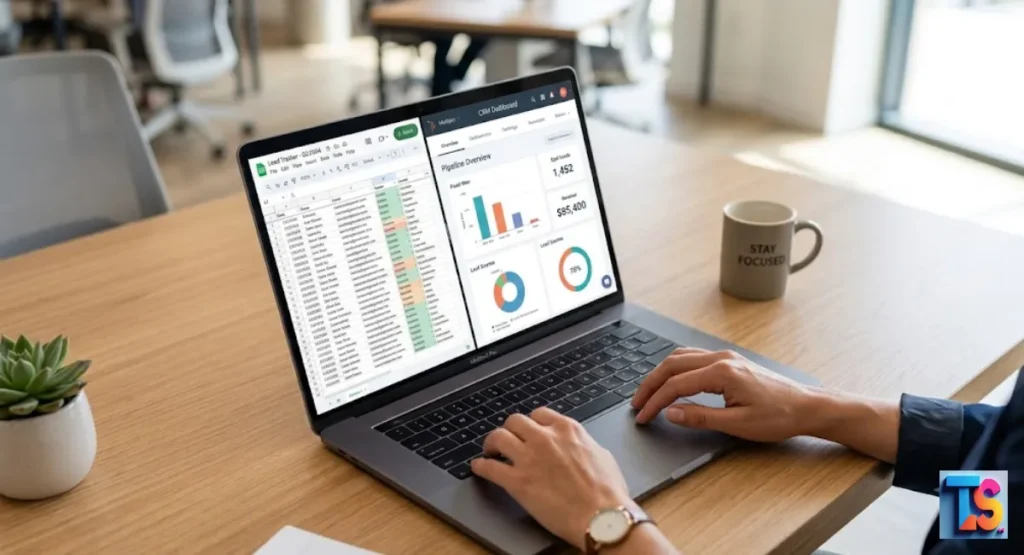
Moving your lead lists by hand is a massive waste of time that leads to messy mistakes. You deserve a better way to work. When you Automate CRM entry from Google Sheets, you turn a boring, slow job into a smart, silent process that runs in the background.
Stop typing the same names over and over again. Your data deserves better. By building No-Code Data Pipelines for Agencies, you ensure every lead gets to your sales funnel instantly without you lifting a finger.
This keeps your contact management clean and your team ready to close deals. It is fast, easy, and smart. Let’s show you how to set it up right now.
Why Is Copy-Pasting Between Sheets and CRM Broken?
Manual copying is slow. It creates mistakes, like typos or missing info, which ruin your data quality. And manual entry cannot keep up with fast business needs.
When you rely on humans to move data, your team loses time waiting. This causes missed chances.
When you move data by hand, you create a slow spot in your daily tasks. Your CRM stays outdated for hours. This makes it hard to track leads or call them on time.
Automating this removes the human part. It works fast. You make sure every record gets saved correctly the moment you type it.
What Are The Three Ways to Connect Sheets to a CRM?
You can connect your sheet to a CRM using native tools, third-party apps, or custom code. Native tools are built into the CRM and are simple.
Apps like Zapier or Make offer easy, no-code solutions. Custom code gives you more control, but you need a pro to write it.
- Native Tools: Direct add-ons or built-in features provided by your CRM company.
- No-Code Automation: Apps like Zapier, Make, or n8n that bridge your two different tools.
- Custom Code: Direct paths built by developers to handle very large or complex lists of customer data.
How Do You Set Up a Native Sheets-to-CRM Sync?
Native syncs are the best way to move data if your CRM has them. You usually add a plug-in or link your accounts in the settings page.
Once they connect, you map your sheet columns to CRM fields. The system then watches your sheet for new rows and creates records.
To start, check your CRM store for a Google Sheets add-on. Follow the steps to let it see your Google account. You will then pick the file you want to watch.
Match the names and emails in your sheet to the CRM fields to make sure the data lands in the right spot.
How Do You Build a No-Code Sync With Zapier or Make?
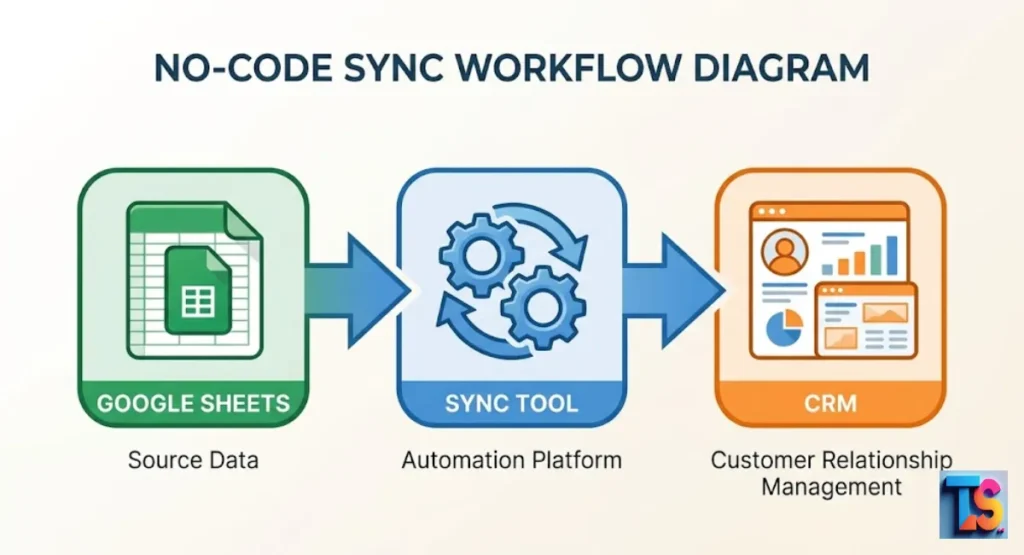
No-code tools use triggers and actions to move data. A trigger is the event in Google Sheets, like a new row, and the action is the task in your CRM, like making a contact.
You define these steps in a simple editor, map the data, and turn it on.
In apps like Zapier or Make, you create a new workflow. First, pick Google Sheets as the start. Choose the new row trigger and link your file. Next, pick your CRM as the end goal and choose create contact.
Use the mapping menu to link columns to your CRM. Test it once.
How Do You Build a Bidirectional Sync With n8n?
Two-way sync means data moves back and forth between your sheet and CRM. With n8n, you create a workflow that checks for updates in both places.
When a change happens in the CRM, n8n updates the sheet. When a row changes in the sheet, n8n updates the CRM. Both lists stay matched.
This needs a workflow with two triggers. One trigger watches the sheet, and the other watches the CRM. You must add rules to check for time stamps.
This lets the system know which record is the newest. It stops old data from writing over new data by mistake in your main system.
How Do You Handle Duplicates and Data Conflicts?
Duplicates happen when the same person is added twice. To fix this, use your CRM search tool before you create a new record.
If the email address exists, tell the system to update the old contact instead of making a new one. This keeps your database clean and avoids two-time sales tasks.
Set your workflow to look for existing data first. For example, have the system search your CRM for the email in the new sheet row.
If it finds a match, the system updates the contact. If it finds nothing, it makes a new one. This rule ensures every lead stays unique.
What Are the Most Common Field Mapping Problems?
Field mapping fails when the data format in your sheet does not match the CRM rules. Common issues include phone numbers missing country codes, bad date formats, or text in the wrong menu.
Always check that your source data matches the CRM rules before you start the sync.
To avoid these, clean your data in the sheet first. Use standard formats for dates and check that names are in the right columns. If the mapping is wrong, the system will show an error.
Checking your fields before you finish the setup helps you avoid these common and painful data sync errors.
What Should You Automate First?
Start by automating your highest-volume lead sources. This is usually your website contact forms that dump data into a Google Sheet. By automating this, you guarantee that every new lead reaches your sales team right away.
Once this is stable, you can expand to other tasks like Auto-sync Scraped Data to Email Platforms, Automated Lead Qualification, Automate Local Lead Syncing to CRM, or Niche Automation & Workflow Optimization.
Focusing on lead entry gives you the best results fast. It turns a manual, repeat task into a background process.
By removing the wait time for data entry, your sales team can call leads while they are still interested, which helps you win more deals and keeps your team working at its best.
Why Bidirectional Sync (Not Just One-Way)
One-way sync only moves data from Sheets to your CRM. Two-way sync ensures that if a salesperson changes a phone number or status in the CRM, the sheet updates too.
This is vital for teams that use spreadsheets for reports, as it prevents data gaps and keeps all team members on the same page.
When both systems update each other, your spreadsheet becomes a real-time reflection of your CRM. This removes the need to manually export data from your CRM to check for updates.
Everything stays synced, reducing the risk of working with old or wrong lead information while you go about your busy daily operations.
Architecture: How the Sync Works
The process relies on triggers, data sorting, and web connections. A trigger detects a new row. The sorting step cleans or formats that data. Finally, the web connection pushes the structured data into the CRM.
Modern 2026 systems use very fast API calls to move your data without any lag or errors in your pipeline.
| Component | Function |
| Trigger | Watches for new or updated rows. |
| Sorting | Formats data for the CRM. |
| Lookup | Checks for existing records to prevent duplicates. |
| Action | Creates or updates the contact in the CRM. |
Field Mapping: The Critical Step Everyone Rushes
Mapping is the process of telling your system which sheet column goes into which CRM field. If you map a company name to a last name field, your data will become messy.
Spend extra time here to ensure every piece of information lands in the correct spot to keep your data neat and tidy.
Always test your mapping with one sample record before turning on the full system. Check the CRM record after the test to ensure the info looks right.
If the layout is off, fix your spreadsheet or use your tool’s simple formatting functions to change the data structure before it hits your main system.
Deduplication: Preventing Double Records
Deduplication logic is the main guard for your database. Without it, your CRM will eventually fill up with repeat leads from form entries or accidental clicks.
By using a unique tag, such as an email address, your system can recognize if a person is already in your database, saving you from a mess.
Most tools provide a search step. Always place this step before your create step. Set the system so that if a match is found, it updates the record. If no match is found, it creates a new one.
Once this is done, you can also automate local lead syncing or lead qualification to further build your data pipeline.
Conflict Resolution: When Both Systems Change

Conflict resolution determines which system wins when data is changed in both places at the same time. The best strategy is to use time stamps.
The system compares the time of the update in the CRM and the sheet. The most recent change is the one that gets saved to both locations.
If you do not use time stamps, you risk writing over important data. For example, if a salesperson updates a lead status, but an old sheet row updates the same record later, you could accidentally revert the status.
Always set your system to check time stamps to ensure the newest info stays current.
CRM-Specific Configuration Guides
HubSpot + Google Sheets
HubSpot has a built-in sync that makes this process very easy. Use the HubSpot data sync feature to map your Google Sheets columns directly to HubSpot contact properties.
It supports two-way sync, which is perfect for keeping your sales data and spreadsheet tracking perfectly aligned without needing any extra apps or tools.
HubSpot now uses 2026 AI tools to help validate your contact data automatically. If you have a wrong email format, the system will catch it before it enters your database.
This ensures your list stays clean and ready for your team to use without any manual work on your end for data checks.
Zoho CRM + Google Sheets
Zoho offers a strong way to link data and built-in helpers for Google Sheets. You can use the Zoho CRM helper for Sheets to push data directly.
For more complex needs, use Zoho Flow, which is built to handle triggers between Sheets and your CRM with very little setup work required from you.
This setup is fast and uses 2026 standards to keep your data safe. You do not need to worry about the setup taking all day.
Once you connect your accounts, the data will flow between both apps without you needing to press any extra buttons or manage any complex code for your workflow.
Pipedrive + Google Sheets
Pipedrive works well with external automation tools like Zapier for your needs. Because Pipedrive is very visual, mapping your sheets to its deal fields is simple.
Focus on mapping the stage and owner fields correctly so that new leads automatically enter the right part of your sales funnel every single time you generate new interest.
Pipedrive uses modern 2026 API connections to make sure your data moves quickly. This means your sales team sees updates in seconds rather than waiting for a manual import.
By linking these two tools, you create a powerful workflow that handles lead entry, status tracking, and follow-ups with almost no effort required from your side.
FAQs
Can I sync Google Sheets to my CRM for free?
Yes, many modern CRMs have free built-in links, and top automation tools offer free monthly plans for small tasks. You can start small and move to paid plans later when you have more data to move. This lets you see how the system works without spending any money on your first set of tasks.
How do I handle duplicates when syncing Sheets to a CRM?
To handle duplicates, you must use a unique tag like an email address or lead ID in a search step. This check must happen before the final create action. If the system finds a match, it updates the record. If it finds nothing, it creates a new contact to keep your database clean.
Which is better: Zapier, Make, or n8n?
Zapier is the easiest for new users who want speed. Make is better for complex jobs that need custom logic. n8n is best if you want to host it yourself and save money when you have a lot of data. You should choose the tool that fits your budget and the number of tasks you have.
How long does it take to build a Sheets-to-CRM automation?
A basic link can be built in under 30 minutes, while complex two-way syncs may take a few hours to test and finish properly. You should dedicate time to testing your mapping and deduplication rules to ensure the data flows correctly before you start using it for your active business sales team needs.
What’s the biggest mistake teams make with CRM sync?
The biggest mistake is failing to set up a duplicate check, which leads to messy, unreliable databases that are hard to use. When you ignore this, you end up with repeat leads and confusing sales notes. Always check for a matching email address before you create any new record in your central system.
Should I use webhooks or polling for real-time sync?
Webhooks are faster and work better for most business apps today, but polling is easier to set up if your systems do not support direct web hook trigger tools. Webhooks push data the moment an event happens, while polling checks for changes every few minutes. Use webhooks whenever you need fast, live updates.
Can I sync data between multiple Google Sheets and one CRM?
Yes, you can create multiple workflow jobs, each pointing to a different sheet, all feeding into your one single central CRM database. You simply configure each automation to send data to the same CRM destination. This is a great way to combine leads from different sources like forms, ads, or manual lists.
What happens if the sync breaks while I’m away?
Most automation apps will send you an email alert if a job fails, allowing you to fix the issue and redo the failed data once you return. You can also view the error logs in your tool to see exactly which row failed and why. This prevents data loss while you are busy managing your business.
The Bottom Line
That automation stops manual entry errors. You link your sheets to your CRM using tools like Zapier or n8n.
This keeps your lead data updated and clean. So, set up your triggers now. Save time. Stop the manual work and let your system handle the heavy lifting.